
Computing for children aged 6 to 11
Meet Opuro, your child's friendly guide to computers
Talking lessons, hands-on activities and gentle quizzes that show children how computers really work. Built on international computing standards for primary school.
- 30 lessons in two years
- No adverts
- Computers and tablets
- Grown-up PIN
How a lesson works
Children understand first, then show what they know
Every lesson follows the same calm rhythm, and children set the pace. Opuro waits for them to tap Next, and they can pause him or hear him again at any time.
 1
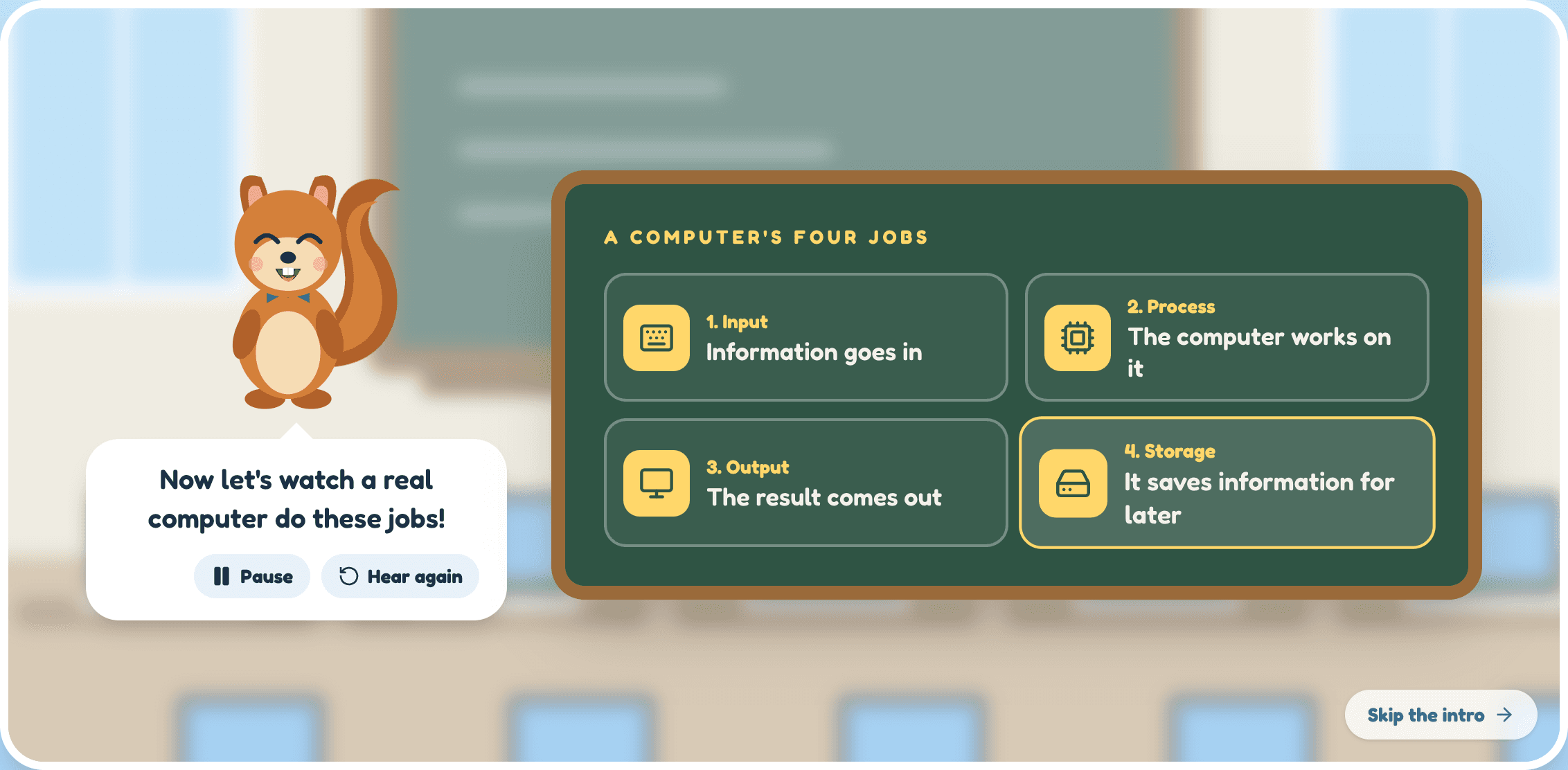
Opuro explains
Each lesson opens at the chalkboard with one big question, answered in words children understand, with real examples from their lives.
 2
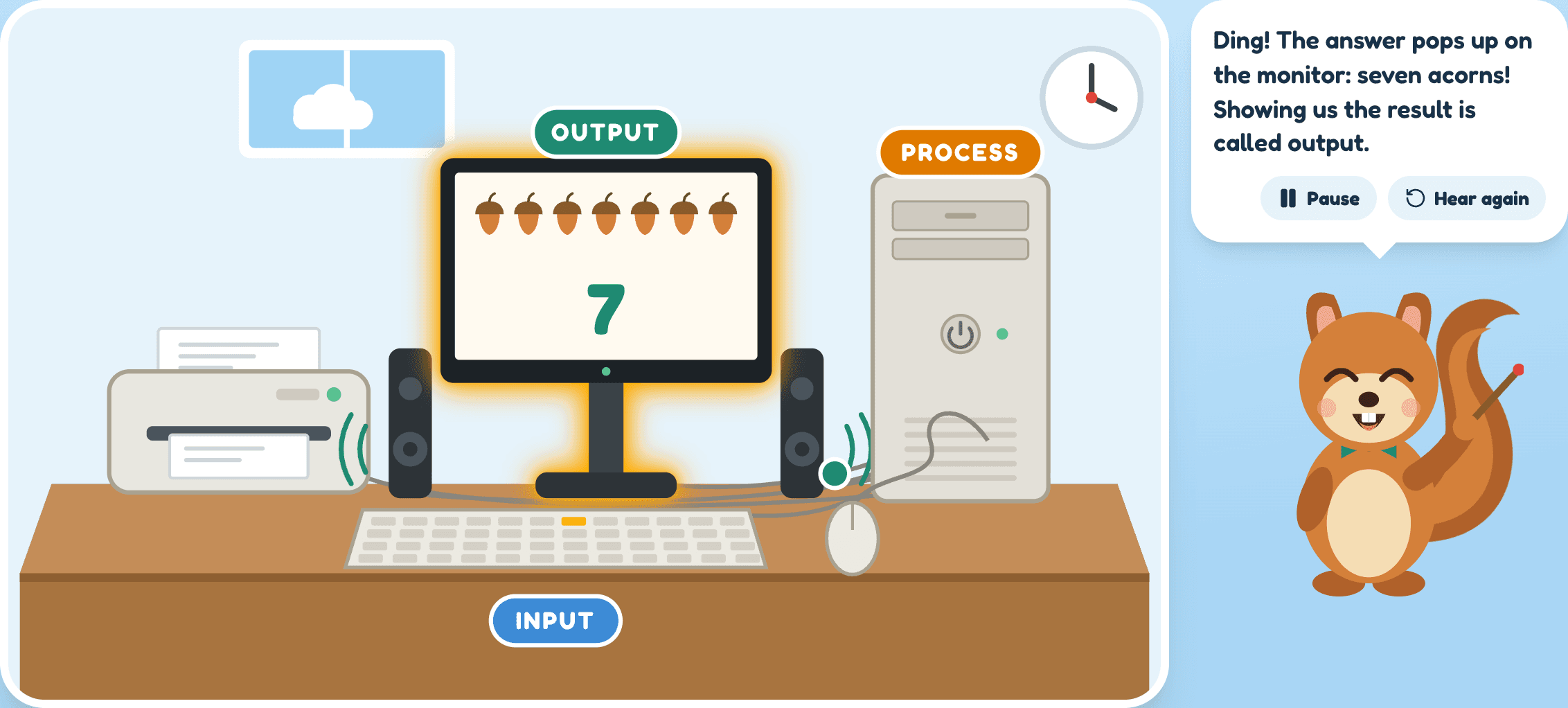
Watch it work
Before naming any parts, children watch a computer do a real job. Here, the numbers travel in, get added up, and seven acorns pop up on the screen.
 3
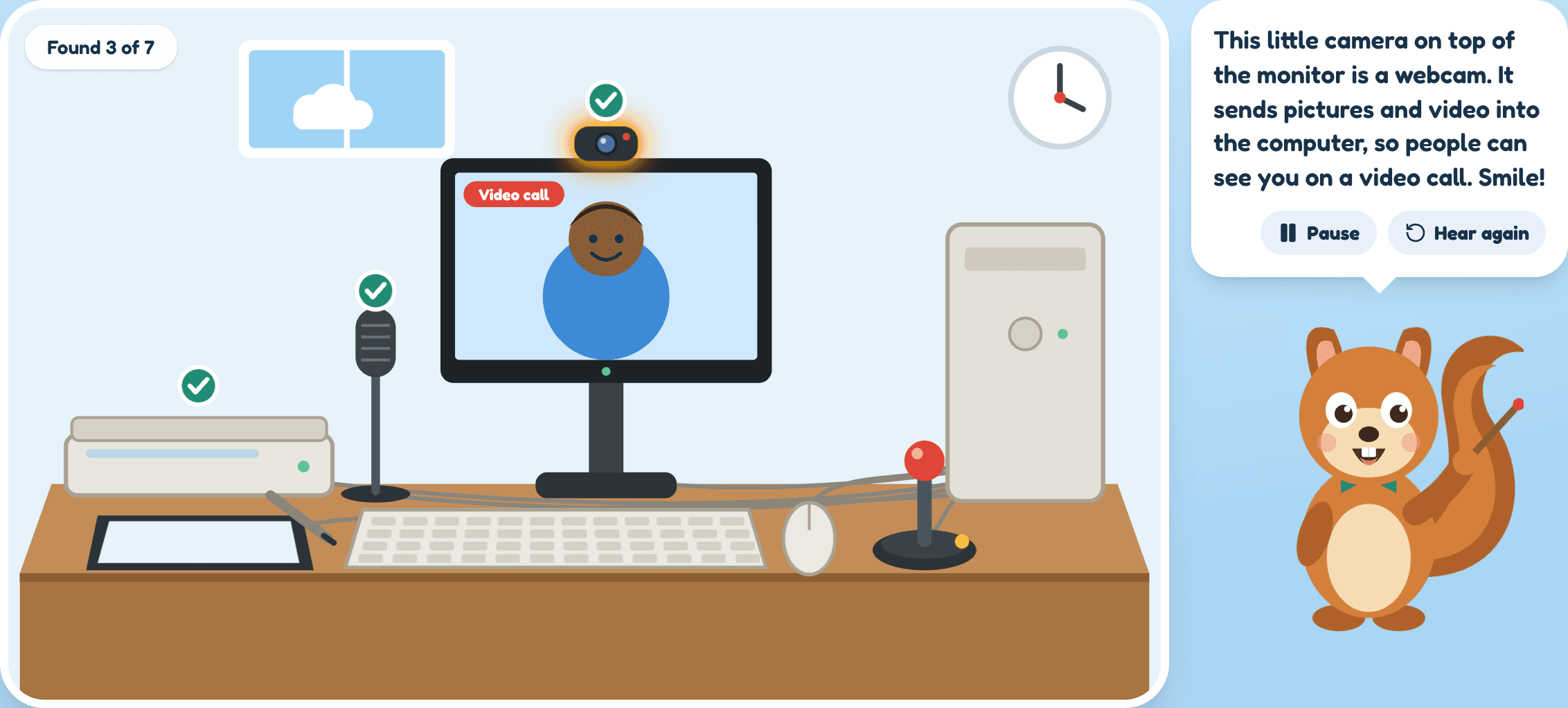
Explore and try
Children tap each part to hear what it does. In lesson 2, the webcam starts a video call and the scanner copies a drawing onto the screen.
 4
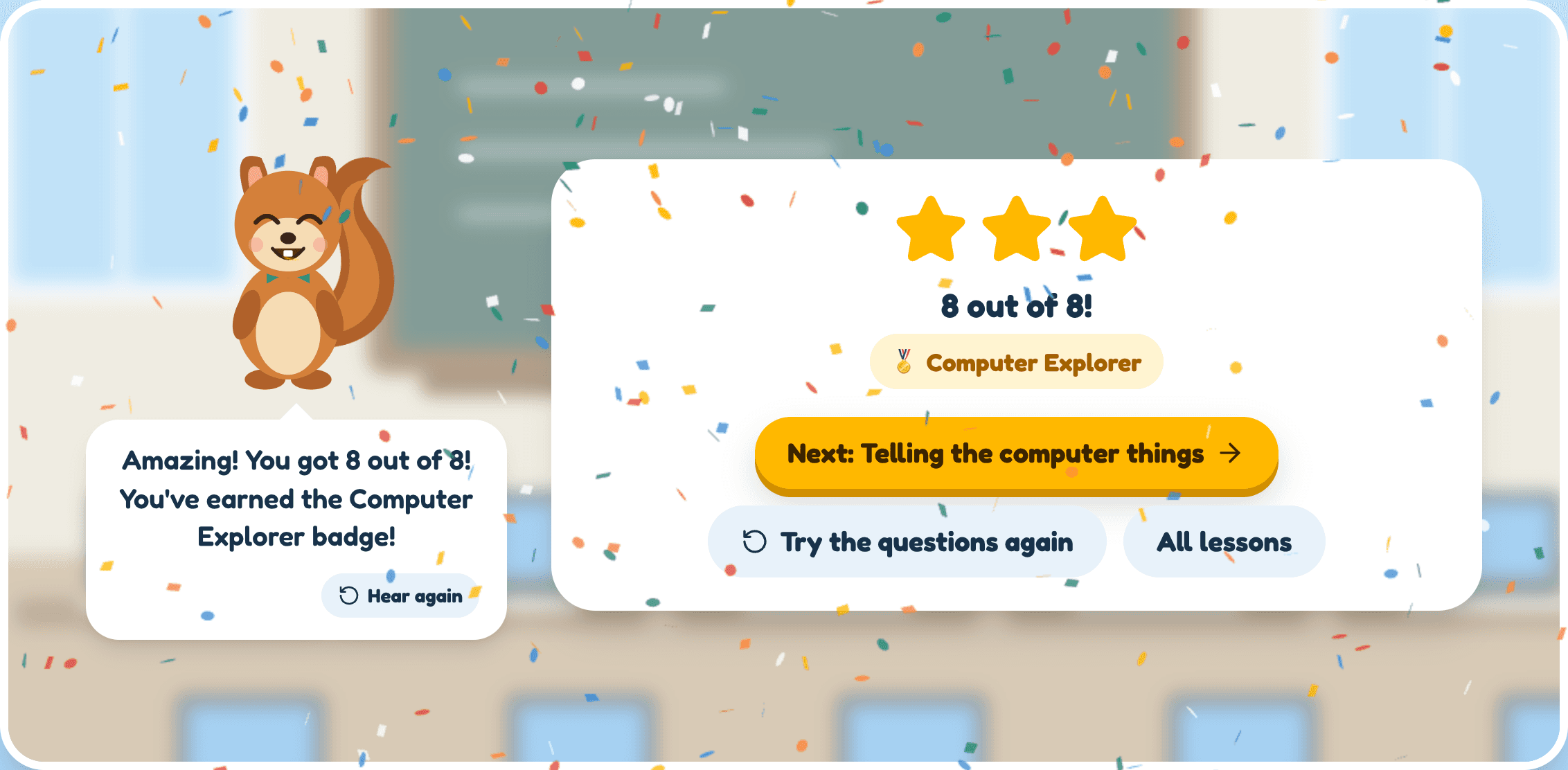
Questions and stars
Short, varied questions: tap the part, sort, match, choose. Kind help when they slip, then stars, a badge and a little celebration.
What children learn
Two years of computing, one lesson at a time
Year 1 shows children how a computer works. Year 2 takes them online, into everyday apps and their first programs. Year 2 opens once a child has finished Year 1.
Year 1: How computers work
The parts of a computer, input and output, ports and wireless devices, memory and storage, computers in everyday life, and health and safety at the computer.
- 1Meet the computerHow a computer works, and the parts that plug into it.
- 2Telling the computer thingsMicrophones, webcams, scanners, joysticks and more.
- 3Mighty mouseClick, double-click, drag, scroll and right-click.
- 4Keyboard kingdomThe rows, the home keys and the special keys.
- 5Hearing and seeingScreens, speakers, printers and projectors, plus softcopy and hardcopy.
- 6Fat screen, flat screenCRT, LCD, LED and OLED screens, and the pixels that make every picture.
- 7Inside the system unitThe CPU, RAM, hard drive, motherboard and more.
- 8Plugging inUSB, HDMI, Ethernet and more: the ports where cables plug in.
- 9No cables neededWireless mice, Bluetooth and Wi-Fi: how devices connect without cables.
- 10RAM or ROM?Two kinds of memory, and why we save our work.
- 11Where things are keptFlash drives, memory cards, discs and the cloud.
- 12Hardware, software and youThe three parts of every computer system.
- 13Giant computers of long agoFrom room-sized ENIAC to the phone in your pocket.
- 14Computers todayDesktops, all-in-ones, laptops, tablets and phones.
- 15Computers all around usPhones, cash machines, tills and traffic lights.
- 16Sit smart, rest your eyesStaying healthy and comfortable at the computer.
Year 2: Online, apps and coding
Staying safe and kind online, how the internet joins up, browsers, search and email, writing, slides and spreadsheets, then block coding and how AI learns.
- 1Safe and kind onlineWhat being online means, and how to stay safe and kind.
- 2Secret keysPasswords: how to make a strong one, and keep it secret.
- 3Friends, strangers and footprintsChatting safely, and the footprints we leave online.
- 4How the internet joins upNetworks, and how a message travels round the world.
- 5Browsers and web pagesWeb addresses, links, the Back button and bookmarks.
- 6Search smart, check it's trueKeywords, adverts, and checking what we find.
- 7Writing an emailAddresses, subjects, replies and attachments.
- 8Spot the trickSpam, scams and pop-ups, and what to do.
- 9The word processorFonts, copy and paste, undo and saving.
- 10Making slidesSlides, pictures, themes and transitions.
- 11Tables of dataSpreadsheets, totals, charts and records.
- 12Step by stepAlgorithms, and programming Opuro through a maze.
- 13Loops and bugsRepeat, if, and finding and fixing mistakes.
- 14Smart things and AIThe Internet of Things, and how AI learns.
For parents
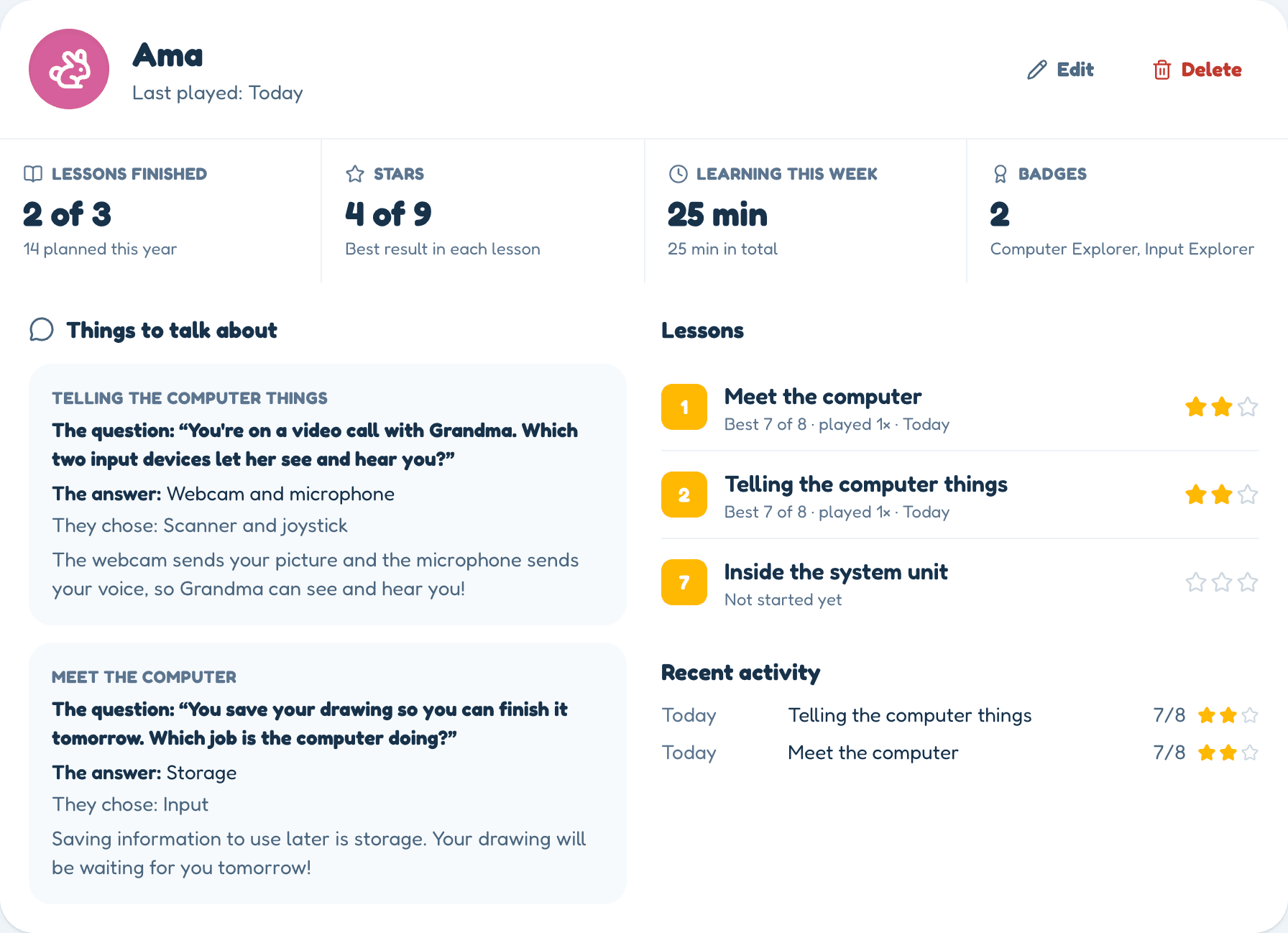
Know what they learned, and what to talk about
- See their progressLessons finished, stars, badges and time spent learning, for each of your children.
- Things to talk aboutThe questions they found tricky, what they chose, the right answer and a tip, so a quick chat at dinner can make it stick.
- Safe by designNo adverts and no tracking. A grown-up PIN keeps children out of your settings. For each child we store a first name or nickname, an animal, and their lesson answers, results and time spent.
Pricing
Pay once for the whole of Year 1
The first two lessons are free for everyone, with no sign-up. A Year 1 pass unlocks all 16 lessons, the big review and the certificate, for as long as your child wants to use them. Year 2 pricing will follow.
Year 1 pass
For one family, for every child in it
$19.99$24.99
Launch offer for our first families
- All 14 lessons, the big review and the certificate
- Pay once, keep it: no subscription
- Stars and progress for each child, with the parent dashboard
Give a pass
For a grandchild, niece, nephew or friend
$24.99
Sent as a gift code by email
- Everything in the Year 1 pass
- A lovely birthday or holiday present
- Works on computers and tablets
Sponsor a classroom
For a school that can't afford it
$129
A whole class, for a year
- Opuro for a class of pupils for a year
- For schools where families can't pay
Passes go on sale soon. Until then, every lesson is free to try. Want to know when they're ready, or to sponsor a classroom?
Tell me whenPrices may change before passes go on sale. Schools pay one flat price per term, not per pupil. See Opuro for schools.
For schools
Mapped to computing standards, lesson by lesson
Written for pupils aged 8 to 11, every lesson is mapped to international computing standards, including the US CSTA K-12 standards and Ghana's NaCCA curriculum. Opuro runs in a web browser, on lab computers and tablets alike.
- Curriculum codes for every lesson, so you can see exactly what's covered
- Works on shared computers and tablets, with nothing to install
- Class accounts and teacher reports are coming next
Opuro for schools
See the lesson-by-lesson curriculum map, how Opuro fits your timetable and computer lab, and how to become a pilot school.
For schoolsOr write to us: hello@baulin.co.uk
More than lessons
Reasons to come back tomorrow
- Their own dashboardEach time they open Opuro, children see the lesson to do next, their stars, how many lessons they've finished and their newest badge.
- Tricky questionsQuestions they got wrong come back later for bonus stars, so weak spots get a second go without repeating a whole lesson.
- My Computer RoomLessons earn coins to spend in Opuro's shop. Children set up their own computer by plugging each cable into the right port, then fix things that go wrong.
- Opuro TypingTouch typing from sitting smart to the home, top and bottom rows, with the Acorn Harvest game along the way.
Questions parents ask
Who is Opuro for?
Children aged about 6 to 11. The lessons are written for ages 8 to 11, and younger children enjoy Year 1 too, especially with a grown-up nearby. Year 2 works best from about age 8.
What's in Year 2?
Fourteen lessons on staying safe and kind online, passwords, how the internet joins up, browsers, searching, email and spotting tricks, then writing, slides and spreadsheets in pretend apps, programming Opuro through a maze with blocks, and how smart things and AI work. Every safety lesson uses one simple rule: stop, don't reply, and tell a grown-up you trust.
What does it cost?
The first two lessons are free, with no account needed. A Year 1 pass unlocks all 16 Year 1 lessons for a one-off payment, priced for your country (see Pricing above). Year 2 pricing will follow. Passes go on sale soon; until then every lesson in both years is free to try. Schools pay a flat price per term.
What do we need to use it?
A computer, laptop or tablet with an up-to-date web browser. Sound helps, because Opuro talks children through every lesson, but every word is also shown on screen.
Is it safe for my child?
There are no adverts, no tracking and no chat. The grown-ups area is protected by a PIN that only you know. Without an account, nothing about your child is sent to us. With one, we store your email and, for each child, a first name or nickname, the animal they pick, and their lesson answers, results and time spent. You can delete a child, or your whole account, at any time. Our privacy notice has the full details.
Which curriculum does Opuro follow?
Opuro follows international computing standards for primary school, including the US CSTA K-12 Computer Science Standards and Ghana's NaCCA Computing curriculum, so it complements what children learn at school. Our schools page shows what each lesson covers. Opuro hasn't yet been reviewed or approved by any curriculum body.
Why a squirrel?
Opuro means squirrel in Twi, a language spoken in Ghana. Squirrels are curious, quick, and brilliant at storing things for later, just like computers!